
Android makes it fairly easy to share a Wi-Fi network that your phone already remembers. On recent Android versions, you can usually open the saved network and generate a QR code without rooting the device.
Menu names can vary slightly between Google Pixel, Samsung, OnePlus, Xiaomi, Motorola, and other Android phones.
Related Article: Generate Wi-Fi QR Code
Key Takeaways:
- Android 10 and newer phones can usually share saved Wi-Fi details or passwords through a QR code.
- Some phones may also display the password as text on the sharing screen.
- Older Android phones may require access to the router or your internet provider’s app.
- Avoid rooting your phone or installing unknown password-viewer apps just to recover a Wi-Fi password.
See Saved Wi-Fi Passwords on Android Easily
Start by opening Settings on your Android phone.
Go to Network & internet and choose Internet. On some Android phones, this section may simply be called Wi-Fi or Connections.
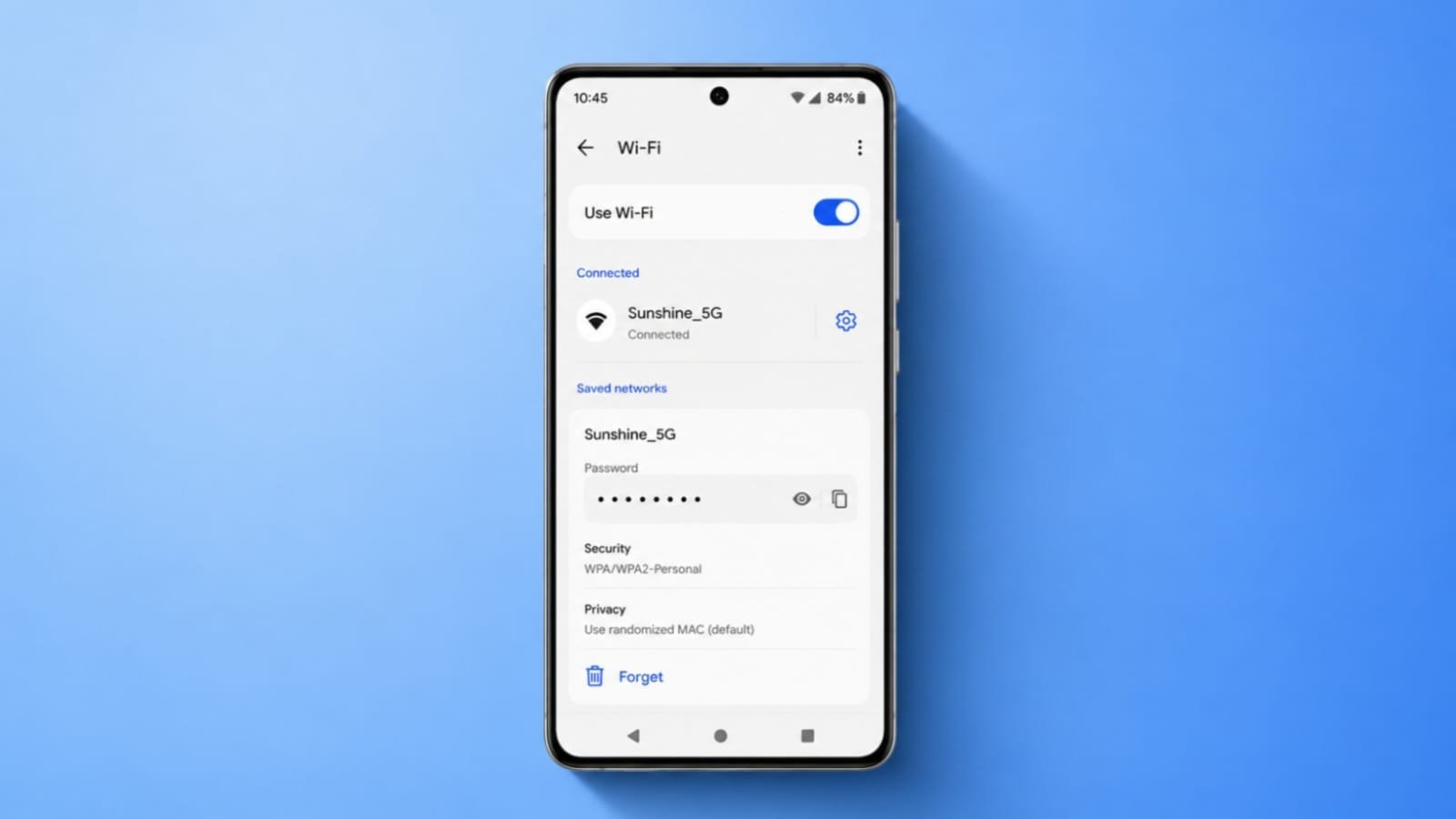
Tap the Wi-Fi network that is currently connected. For a network you used earlier, open the list of saved or known networks and choose the required network.
Look for the Share or QR-code option.
Android may ask you to confirm your identity using your PIN, password, fingerprint, or another screen-lock method.
A QR code will then appear on the screen. Another compatible device can scan this code to connect to the same Wi-Fi network without manually typing the password.
Some Android manufacturers also display the Wi-Fi password underneath the QR code. If your phone only shows the QR code, that is normal.
Share Wi-Fi Using a QR Code
A QR code is often the easiest way to share a saved Wi-Fi network.
Open the Wi-Fi network’s sharing screen and let the other person scan the code using their phone. Recent Android devices can normally scan Wi-Fi QR codes through the camera, QR scanner, or Wi-Fi settings.
You can also take a screenshot of the QR code if you need it again later. However, treat that screenshot like a password.
Anyone who gets access to a usable Wi-Fi QR code may be able to connect to the network. Avoid storing it in public folders or sending it to people you do not trust.
What About Older Android Phones?
Android 9 and older devices may not provide the same built-in Wi-Fi sharing screen.
Older methods sometimes involved rooting the phone and trying to read protected system files. This is no longer a method I recommend for normal users.
Root access can weaken device security, interfere with some apps, and still may not reveal the password on every Android version or manufacturer.
Instead, check the router settings or your internet provider’s application.
Check the Router for the Wi-Fi Password
If Android does not show a sharing option, the router may provide another way to recover or change the Wi-Fi password.
First, check the label on the router. If the Wi-Fi password has never been changed, the original network name and password may be printed there.
If the password was changed, open your router’s management page or the official application supplied by your internet provider.
Router addresses and login methods differ between manufacturers, so use the address shown on the router label, router documentation, or your provider’s instructions.
Sign in with the router administrator account and look for a section such as:
- Wi-Fi
- Wireless
- Wireless Security
- Network Settings
The password may appear as Wi-Fi Password, Security Key, Network Key, or Passphrase.
Do not keep trying generic administrator passwords such as “admin” unless your router’s own documentation specifically tells you to use them.
If you cannot access the router, contact the internet provider or the person who manages the network.
What If the Share Option Is Missing?
Android menus are not identical on every phone.
Search Settings for terms such as Wi-Fi, Internet, Saved networks, or Share.
Samsung phones, for example, may place Wi-Fi settings under Connections, while other manufacturers use Network & internet.
Also make sure the network is already saved on your phone. Android cannot reveal credentials for a Wi-Fi network your device has never joined.
Fix Problems When the Password Does Not Work
Wi-Fi passwords are case-sensitive, so check uppercase and lowercase characters carefully.
Make sure you are trying to connect to the correct network. Some routers use separate names for 2.4 GHz, 5 GHz, or guest networks.
Those networks may use the same password or different passwords depending on how the router was configured.
If the password appears correct but the phone still cannot connect, try forgetting the Wi-Fi network and connecting again.
You can also restart the phone and router before trying again.
The End Note
The easiest way to see saved Wi-Fi passwords on Android is through the built-in Wi-Fi sharing feature available on newer Android phones.
Open the saved network, choose Share, verify your identity, and use the generated QR code. Some phones will also show the password directly.
For older devices, checking the router or your internet provider’s official app is safer than rooting the phone or using unknown password-recovery applications.