
Low storage can prevent new apps from installing and leave less room for photos, videos, downloads, and app data. It can also make everyday phone management more difficult.
Android provides several built-in ways to find large or unnecessary files. The safest approach is to check what is actually using storage before deleting anything.
Key Takeaways:
- Check Storage settings before removing files.
- Delete unnecessary downloads, large files, screenshots, and unused apps.
- Clear app cache instead of clearing all app data when possible.
- Smart Storage can manage backed-up photos and videos on supported devices.
- Files by Google can help find unnecessary files quickly.
Clear Up Storage Space on Android Using Settings
Android treats storage and memory differently. Storage keeps apps, photos, videos, downloads, music, documents, and other files.
Memory, also known as RAM, is used while Android and your applications are running.
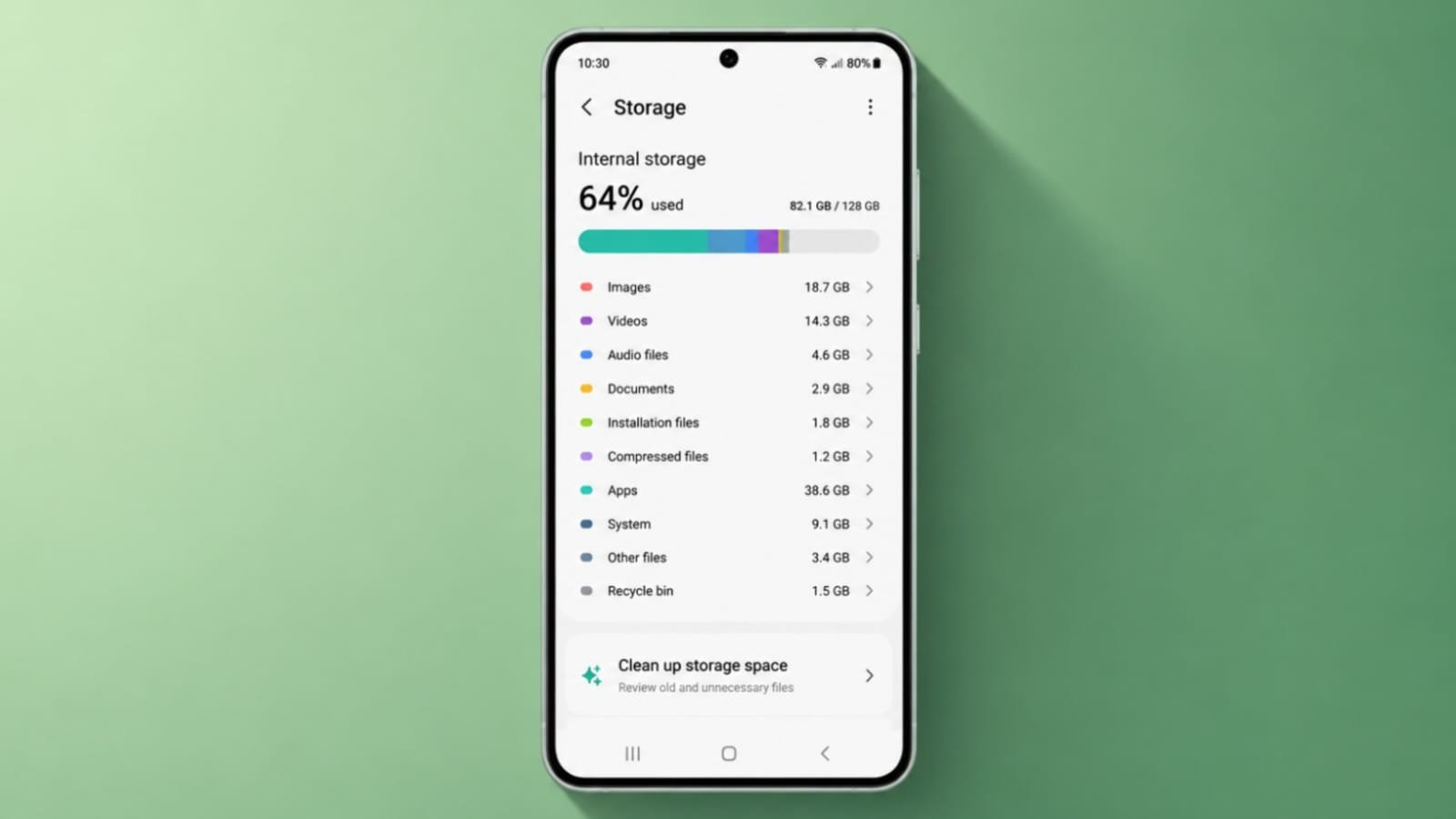
To check your phone storage, open Settings > Storage.
You should see different categories showing how much space is being used by apps, photos, videos, documents, system files, and other data.
Menu names can differ slightly between Samsung, Pixel, OnePlus, Xiaomi, Motorola, and other Android phones.
Check the categories using the most space before deciding what to remove.
Free Up Space Manually
Some Android phones provide a built-in Free up space option.
Open:
Settings > Storage > Free up space
Your phone may show photos, videos, downloaded files, large files, or applications that you have not used recently.
Review the suggested items carefully.
Select only the files you are sure you no longer need. You may then be able to move them to Trash or permanently remove them.
Avoid selecting everything without checking first. Important photos, documents, downloads, or application files may appear among the suggestions.
Clear App Cache
Applications can build up temporary files over time.
To check an individual app, open:
Settings > Apps > Select an app > Storage & cache
You may see options such as Clear cache and Clear storage.
These options are different.
Clear cache removes temporary files created by the application. The app normally keeps your account information and important settings.
Clear storage or Clear data can remove the application’s stored information and return it closer to its original state.
Be careful when using Clear storage with messaging, banking, authentication, gaming, or productivity apps.
If you only want to recover some space, clearing the cache is usually the better option to try first.
Use Smart Storage
Some Android devices include Smart Storage.
This feature can automatically remove local copies of backed-up photos and videos when your phone starts running low on storage.
On supported devices, you may find it under:
Settings > Storage > Free up space > Settings > Smart Storage
Turn it on only if you are comfortable allowing Android to manage backed-up media automatically.
The exact location of Smart Storage can vary depending on your Android version and phone manufacturer.
Some devices may not provide this option at all.
Free Up Space with Files by Google
Files by Google provides additional tools for cleaning unnecessary files.
Open Files by Google and select Clean.
Depending on the files stored on your phone, you may see suggestions for:
- Temporary or junk files
- Duplicate files
- Screenshots
- Downloaded files
- Large files
- Unused applications
- Suggested low-quality images
Each category usually shows how much storage could be recovered.
Review the suggested files before deleting them. Do not remove something simply because it appears in a cleanup recommendation.
Delete Unnecessary Downloads
The Downloads folder can consume a surprising amount of storage over time.
It may contain:
- PDF files
- Videos
- Images
- ZIP files
- APK installers
- Documents
- Old attachments
Open your file manager or Files by Google and check the Downloads folder.
Delete files you no longer need.
Pay particular attention to large videos, APK files, and ZIP archives because they can use much more storage than normal documents.
Remove or Archive Unused Apps
Applications can use considerably more storage than their original download size.
They may accumulate updates, temporary files, offline content, and other data.
Open Settings > Apps and review applications you rarely use.
Uninstall apps you no longer need.
Supported Android devices may also provide an option to archive apps.
Archiving removes part of an unused application while keeping information that can help restore it later.
This can be useful when you rarely use an app but do not want to remove everything associated with it.
Check Photos and Videos
Photos and videos are often among the largest storage users on a phone.
High-resolution videos can consume several gigabytes quickly.
Open your gallery or Google Photos and review:
- Long videos
- Duplicate photos
- Old screenshots
- Screen recordings
- Blurry images
- Downloaded media
If your photos and videos are backed up, you may be able to remove local copies to recover storage.
Always confirm that the backup completed successfully before deleting important media from your phone.
Move Large Files Somewhere Else
You do not always need to delete files to recover storage.
Large photos, videos, documents, and other files can be moved to another location.
Depending on your phone, you can transfer them to:
- A computer
- An SD card
- External USB storage
- A trusted cloud storage service
Moving files can be a better option when you want to keep them but do not need them stored permanently on your phone.
What Should You Avoid Deleting?
Avoid removing files when you do not understand what they are used for.
Be especially careful with:
- System files
- Application folders
- WhatsApp or messaging backups
- Authentication data
- Work documents
- Photos that have not been backed up
Randomly deleting application folders can cause missing files or unexpected app problems.
Use Android’s built-in storage tools whenever possible instead of manually deleting unfamiliar system folders.
The End Note
The safest way to Clear Up Storage Space on Android is to first check the Storage section and identify what is using the most space.
Remove unnecessary downloads, large files, screenshots, and unused apps first. Files by Google can provide additional cleanup suggestions, while Smart Storage and app archiving may help on supported Android phones.
Also remember the difference between Clear cache and Clear storage. Clearing the cache removes temporary files, while clearing storage can erase important application data.