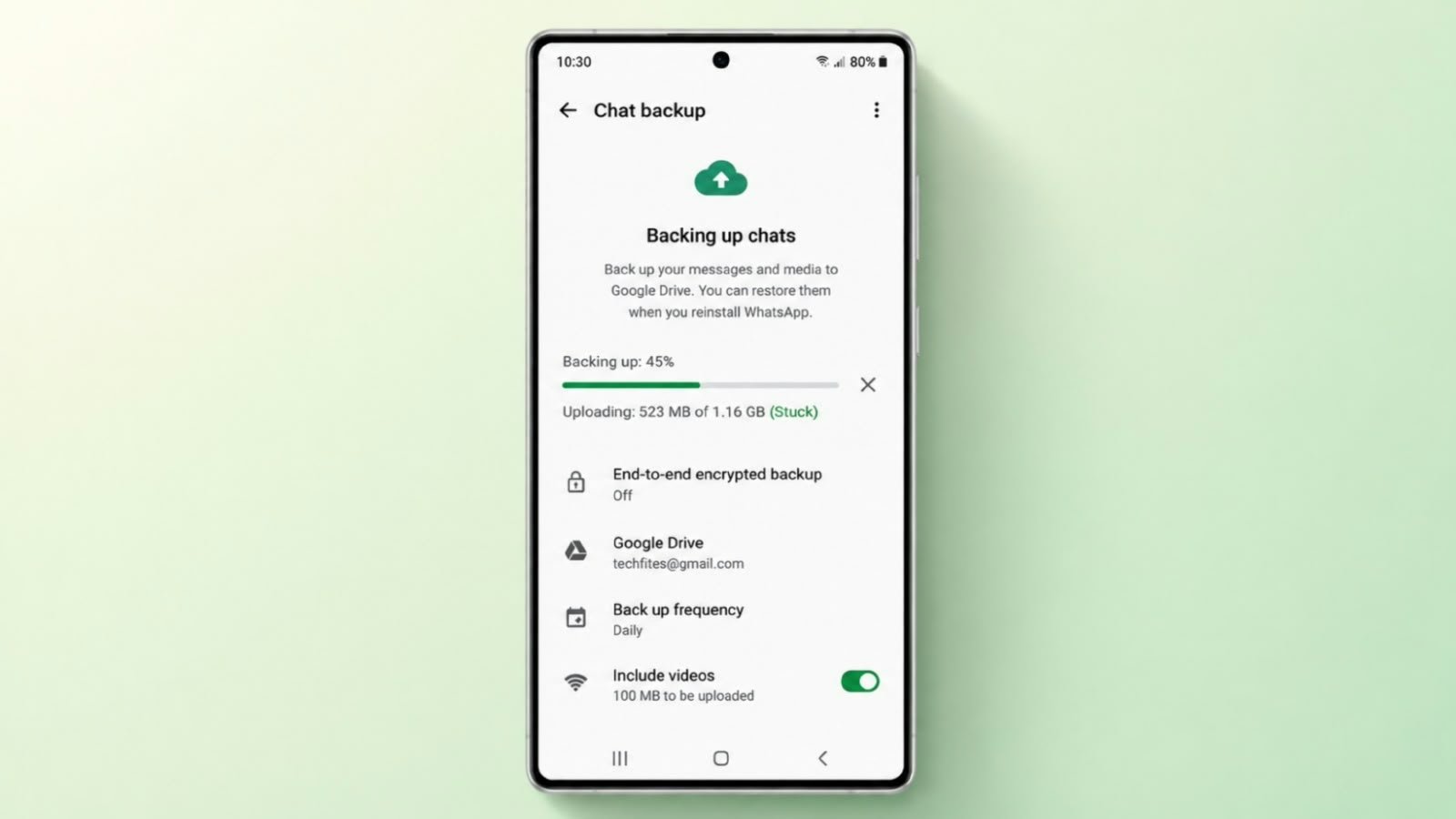

A WhatsApp backup can sometimes remain stuck at a percentage, take unusually long, or fail before completion.
Network problems, insufficient phone or cloud storage, outdated software, and large backup sizes are common reasons. Start with simple checks before trying anything that could affect your existing chat backup.
Key Takeaways:
- Check your internet connection and available storage first.
- Make sure WhatsApp and your phone software are updated.
- Reduce the backup size by excluding videos when necessary.
- Check Google Account storage on Android and iCloud storage on iPhone.
- Do not delete an existing backup unless you understand the risk.
Fix WhatsApp Backup Stuck on Android
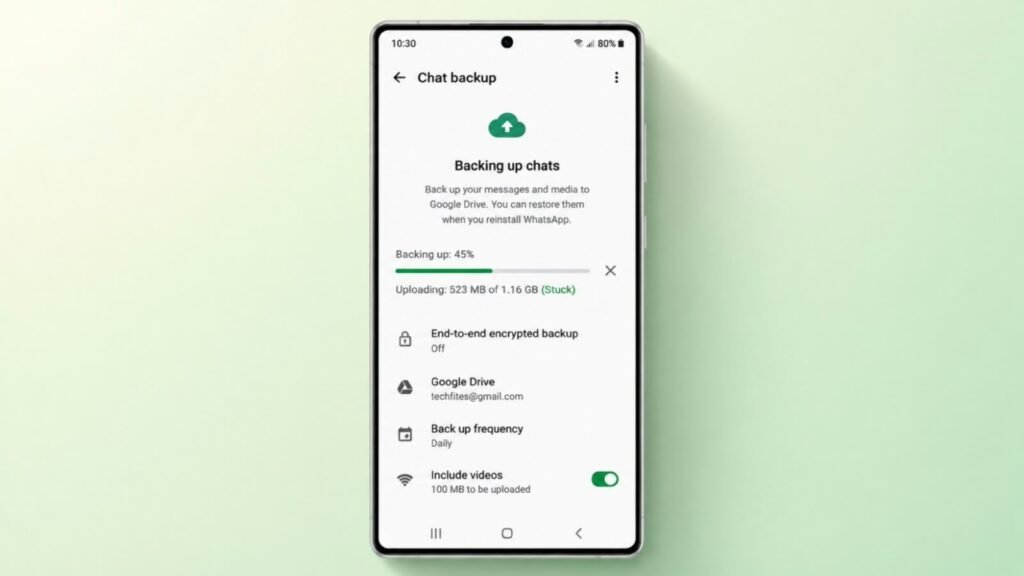
Check Your Internet Connection
WhatsApp needs a stable internet connection to upload a backup.
Connect your phone to a reliable Wi-Fi network and try the backup again.
If Wi-Fi is unstable, turn it off for a few seconds and enable it again. You can also try another trusted Wi-Fi network.
Avoid repeatedly switching between networks while a backup is already running because interruptions can cause the process to fail or restart.
Check Phone Storage
WhatsApp needs enough free space on your Android phone while preparing a backup.
Open:
Settings > Storage
Check whether your phone is nearly full.
If necessary, remove files you no longer need, such as:
- Large videos
- Old downloads
- Duplicate files
- Screenshots
- Unused applications
Do not delete WhatsApp photos, videos, or documents unless you are sure you no longer need them.
Check Google Account Storage
WhatsApp backups on Android use your Google Account storage.
That storage is shared with services such as Google Drive, Gmail, and Google Photos. If your Google Account is almost full, WhatsApp may not have enough cloud storage to complete a new backup.
Check your available Google storage and remove unnecessary files if required.
Be careful when managing an existing WhatsApp backup. Deleting it can permanently remove that backup.
Confirm the Correct Google Account
Open WhatsApp and go to:
Settings > Chats > Chat backup
Check which Google Account is selected for backups.
Make sure the account is active and has enough available storage.
You normally do not need to remove your Google Account from the phone just because a backup is slow or temporarily stuck.
Reduce the WhatsApp Backup Size
Videos can make a WhatsApp backup considerably larger.
Open:
WhatsApp > Settings > Chats > Chat backup
Turn off Include videos temporarily and try the backup again.
You can also review large WhatsApp media files that you no longer need before starting another backup.
A smaller backup may upload more quickly and require less cloud storage.
Close and Reopen WhatsApp
A temporary application problem may interrupt the backup process.
Close WhatsApp completely and open it again.
Return to:
Settings > Chats > Chat backup
Then start the backup again.
Avoid repeatedly force-closing WhatsApp while a backup is actively running.
Restart Your Android Phone
Restarting the phone can clear temporary network or application problems.
After the phone restarts:
- Connect to a stable internet connection.
- Open WhatsApp.
- Go to Settings > Chats > Chat backup.
- Try the backup again.
Update WhatsApp
Open Google Play Store and search for WhatsApp.
If an Update button appears, install the latest available version.
After updating, reopen WhatsApp and try the backup again.
If you use a beta version of WhatsApp and the backup problem started after a recent beta update, consider returning to the stable version only after making sure your chats are protected.
Update Android and Google Play Services
Outdated system components can sometimes affect cloud backups.
Check for Android updates through your phone’s Settings.
You should also keep Google Play services updated because many Google account and backup functions depend on it.
Restart your phone after installing major updates and try the backup again.
Do Not Delete the Existing Google Backup as a First Fix
Deleting an old WhatsApp backup should not be one of your first troubleshooting steps.
If you delete the existing backup and then uninstall WhatsApp or change phones before creating another successful backup, you may no longer have that copy available for restoration.
Try freeing other Google Account storage or reducing the WhatsApp backup size first.
Fix WhatsApp Backup Stuck on iPhone
Check Your Internet Connection
Connect the iPhone to a stable Wi-Fi network.
If the backup remains stuck, turn Wi-Fi off and back on or try another reliable connection.
Avoid switching networks repeatedly while the backup is already running.
Check iPhone and iCloud Storage
You need enough available storage on both the iPhone and your iCloud account.
Check iPhone storage from:
Settings > General > iPhone Storage
Then check your available iCloud storage from your Apple ID settings.
If storage is low, remove unnecessary files or reduce the WhatsApp backup size before trying again.
Large backups may require considerably more available space while they are being prepared and uploaded.
Make Sure iCloud Drive Is Enabled
Open:
Settings > Your Name > iCloud > iCloud Drive
Make sure iCloud Drive is enabled.
Also check that WhatsApp is allowed to use iCloud.
After confirming these settings, return to WhatsApp and try another backup.
Reduce the Backup Size
Videos can make an iCloud backup much larger.
Open:
WhatsApp > Settings > Chats > Chat Backup
Turn off Include Videos temporarily.
Then tap Back Up Now again.
You can turn videos back on later if you have enough storage and want them included in future backups.
Close and Reopen WhatsApp
Close WhatsApp completely and open it again.
Then go to:
Settings > Chats > Chat Backup
Tap Back Up Now.
For a large backup, keeping the iPhone connected to power can also be useful.
Restart Your iPhone
A restart can clear temporary network or app problems.
Restart the iPhone, reconnect to Wi-Fi, open WhatsApp, and try the backup again.
Update WhatsApp and iOS
Open the App Store and update WhatsApp if a newer version is available.
Then check:
Settings > General > Software Update
Install any available iOS update.
Restart the iPhone if required and try the WhatsApp backup again.
Do Not Delete an Existing iCloud Backup Without a Reason
Avoid deleting your current WhatsApp iCloud backup simply to test whether another backup will work.
Keep the existing backup until a newer backup completes successfully.
Removing your only working backup can leave you without a usable copy if something goes wrong during reinstalling or changing devices.
Check End-to-End Encrypted Backup Settings
WhatsApp can protect cloud backups with end-to-end encryption.
Depending on your setup, an encrypted backup may use a password, encryption key, or another supported protection method.
Keep those credentials safe.
If you later need to restore an encrypted backup and cannot provide the required credentials, recovering that backup may become difficult or impossible.
Be Careful Before Reinstalling WhatsApp
Do not uninstall WhatsApp as an early troubleshooting step when you are unsure whether a usable backup exists.
Before reinstalling, open:
WhatsApp > Settings > Chats > Chat Backup
Check the date and status of the latest available backup.
Only consider reinstalling after confirming that your important chats are safely backed up.
Reinstalling WhatsApp without a usable backup can put chat history at risk.
Try the Fixes in This Order
You do not need to perform every solution immediately.
Try them in this order:
- Check the internet connection.
- Check phone storage.
- Check Google Account or iCloud storage.
- Confirm the correct cloud account.
- Reduce the backup size by excluding videos.
- Close and reopen WhatsApp.
- Restart the phone.
- Update WhatsApp.
- Update Android or iOS.
- Check Google Play services or iCloud Drive.
- Consider reinstalling WhatsApp only after confirming a usable backup exists.
Test the backup after each step before moving to the next solution.
The End Note
If your WhatsApp backup is stuck, start by checking the internet connection, phone storage, and available cloud storage.
Android users should check their Google Account storage, while iPhone users should confirm that iCloud Drive is enabled and enough iCloud storage is available.
Reducing the backup size by excluding videos can also help when the backup is unusually large.
Most importantly, avoid deleting an existing cloud backup or reinstalling WhatsApp until you have confirmed that your important chat history is safely backed up.