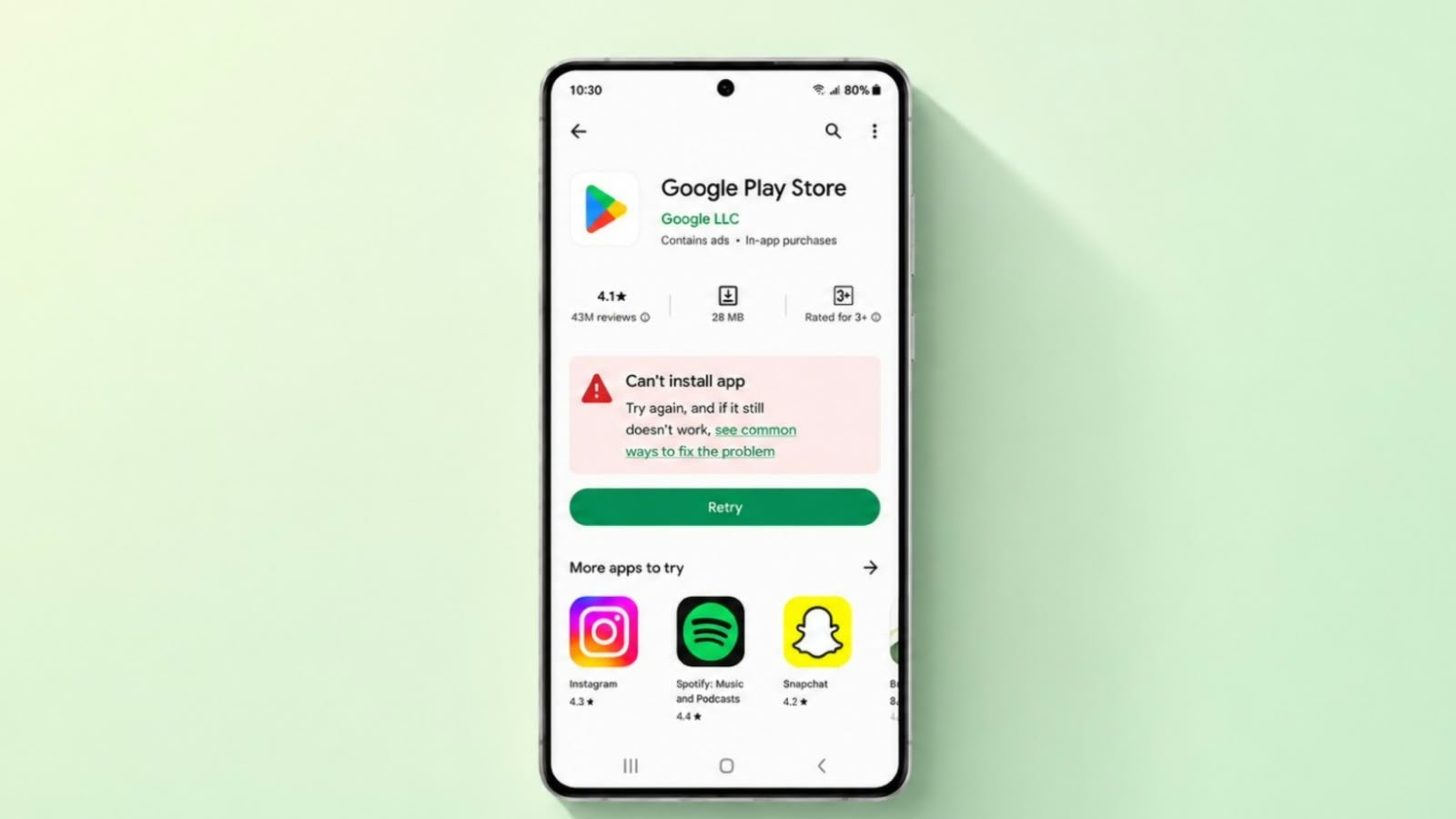

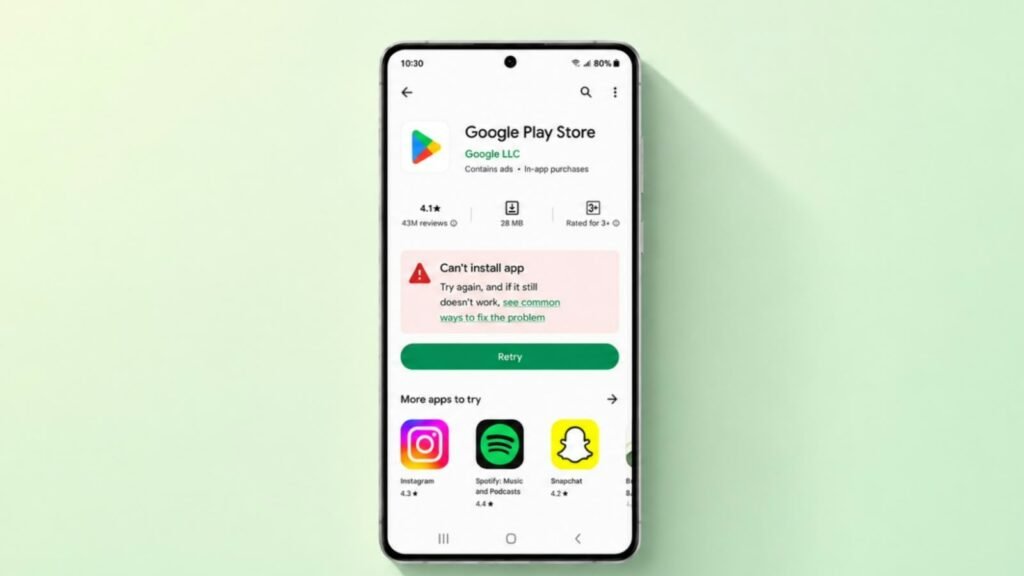
Google Play Store downloads can sometimes remain pending, stop midway, or fail completely. The problem may be caused by an unstable internet connection, low storage, outdated software, or a temporary Play Store issue.
Start with the basic checks before changing account settings or clearing important application data.
Key Takeaways:
- Check your internet connection and available storage first.
- Restart the phone and reopen Google Play Store.
- Make sure Android and Google Play Store are updated.
- Clear the Play Store cache if downloads remain stuck.
- Try account-related fixes only after simpler solutions fail.
Check Your Internet Connection
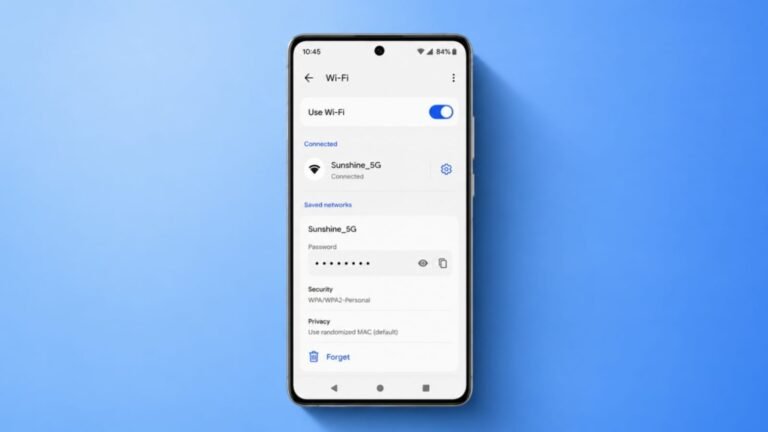
Google Play Store needs a stable internet connection to download and update apps.
Try connecting your phone to a reliable Wi-Fi network. If you are using mobile data, make sure the signal is strong enough.
You can also turn Wi-Fi or mobile data off for a few seconds and then enable it again.
After reconnecting, open Google Play Store and try downloading the app again.
Check Available Storage Space
Low storage can prevent Android from downloading or installing new applications.
Open:
Settings > Storage
Check how much free space remains on your phone.
If storage is nearly full, remove files you no longer need, such as:
- Large videos
- Old downloads
- Screenshots
- Duplicate files
- Unused applications
Free some storage and try the download again.
Related Article: How to Clear Up Storage Space on Android Easily: Complete Guide
Restart Your Android Phone
A simple restart can fix temporary Android or Play Store problems.
Press and hold the power button and choose Restart.
Wait until the phone starts completely, then open Google Play Store and retry the download.
Close and Reopen Google Play Store
Sometimes the Play Store only needs a quick refresh.
Open the recent apps screen and swipe Google Play Store away to close it.
Open the Play Store again and try downloading the application.
Check for Android System Updates
Outdated system software can sometimes cause problems with applications and Google services.
Open:
Settings > System > Software update
The exact menu name may vary depending on your phone manufacturer.
Install any available Android update and restart the phone when required.
Then test Google Play Store again.
Check Date and Time Settings
Incorrect date or time settings can interfere with online services.
Open:
Settings > System > Date & time
Enable options such as:
- Set time automatically
- Set time zone automatically
Wait a few moments and try downloading the app again.
Check Whether Only One App Is Affected
If other applications download normally but one specific app does not, Google Play Store may not be the problem.
Open the app’s Play Store page and check whether it is compatible with your device.
An app may be unavailable because of:
- Android version
- Device compatibility
- Country or region
- Hardware requirements
- Developer restrictions
If every other app downloads correctly, check the affected application’s requirements before changing Play Store settings.
Clear Google Play Store Cache
Play Store temporary files can sometimes cause download problems.
Open:
Settings > Apps > Google Play Store > Storage & cache
Tap Clear cache.
Reopen Google Play Store and try downloading the app again.
Clearing the cache removes temporary files and normally does not remove your Google account.
Clear Google Play Store Data
If clearing the cache does not help, you can reset the Play Store’s stored data.
Open:
Settings > Apps > Google Play Store > Storage & cache
Tap Clear storage or Clear data.
Confirm the action when asked.
Reopen Google Play Store and try the download again.
Keep in mind that clearing Play Store data may reset some Play Store preferences.
Update Google Play Store
Google Play Store normally updates automatically, but you can also check manually.
Open Google Play Store and tap your profile picture.
Go to:
Settings > About > Play Store version
If an update is available, the Play Store should begin installing it.
Wait for the update to finish and try downloading the application again.
Uninstall Google Play Store Updates
If the problem continues, reinstalling Play Store updates may help.
Open:
Settings > Apps > Google Play Store
Tap the three-dot menu and choose Uninstall updates if the option is available.
This restores the Play Store version that originally came with your phone.
Open Google Play Store again.
Then go to:
Profile picture > Settings > About > Play Store version
Allow the latest Play Store update to install again.
Clear Google Play Services Cache Only If Needed
Google Play services supports many Android and Google features.
If the basic Play Store fixes have failed, you can try clearing its cache.
Open:
Settings > Apps > Google Play services > Storage & cache
Tap Clear cache.
Restart the phone and test Google Play Store again.
Avoid clearing all Google Play services data unless other troubleshooting methods have failed, because it is connected to many important Google features.
Remove and Re-add Your Google Account as a Last Resort
Google account problems can occasionally affect Play Store downloads.
However, removing your account should be one of the final troubleshooting steps.
Before continuing, make sure important information is backed up and synced.
Open your phone’s account settings and remove the affected Google account.
Restart the phone and add the Google account again.
Allow syncing to complete before testing Google Play Store.
Removing an account can temporarily remove associated information from the device, so do not use this method as your first solution.
Try Each Fix Before Moving to the Next
You do not need to perform every solution at once.
Try the fixes in this order:
- Check the internet connection.
- Check available storage.
- Restart the phone.
- Close and reopen Google Play Store.
- Check Android updates.
- Check date and time settings.
- Clear Play Store cache.
- Clear Play Store data.
- Update or reinstall Play Store updates.
- Try Google account troubleshooting only if the problem continues.
Test Google Play Store after each step. This makes it easier to identify which solution fixed the issue.
The End Note
If Google Play Store is not downloading apps, start with the simplest causes first.
Check your internet connection, available storage, Android updates, and restart the phone. If downloads remain stuck, clear the Google Play Store cache and check for a Play Store update.
More disruptive solutions, such as clearing stored data or removing your Google account, should only be used if the basic fixes do not work.
If only one application refuses to install while other apps download normally, check whether that particular app is compatible with your Android device.